Chasing Next
Support
About/Terms/Privacy
Log inSign up
Home/Set Up Your First Gemini Notebook in <15 Minutes/Set Up Your First Gemini Notebook
Free15 minLesson 1 / 1

Set Up Your First Gemini Notebook

Go from one-off chats to using AI strategically by creating a dedicated space that holds your files, your past work, and how you want Gemini to respond.

Module overviewModule overview

Want more like this?

Get new module drops and weekly AI strategy.

1

Learn

2

Your Turn

3

Get Credit

The easiest way to get strategic with AI

Leveling up starts with one move: learning to use Gemini Notebooks.

Setting up a Notebook takes a few minutes up front and then keeps paying off, with less repeating yourself, better results, and a real feel for using AI strategically in your day-to-day.

In the next 15 minutes, you'll build one to help with something you're working on.

Notebooks are currently available on Google AI Free, Plus, Pro, and Ultra plans. Non-US availability may be limited.

What is a Gemini Notebook?

A Notebook holds three things:

  1. Instructions that tell Gemini how to respond every time you use the Notebook. (Think of this like a prompt automatically read at the start of each chat.)
  2. Sources you attach: files, Drive documents, websites, text you paste in, and past Gemini chats you pin to the notebook
  3. Chats that pull in your sources and instructions automatically, and build up Notebook memories across conversations as you go.


Without a Notebook: you rebuild what Gemini knows and how it acts every chat.

With a Notebook: the sources and the standing instructions live together. Every new chat inside it starts with all of it already loaded (no re-pasting or re-framing).

Three ways to use Notebooks

Notebooks aren't just a way to get organized. Instructions make it so you can use them for different types of work:

  1. Initiatives: Use them as a helper for conversations tied to related work like a launch, a campaign, a Q3 strategy, a presentation you are building, etc.
  2. Tasks or workflows: Give them specific instructions that speed up reoccurring work like building a weekly status report, brainstorming your editorial calendar, helping prep your monthly board update.
  3. Specialist feedback or perspective: Have your Notebook act as a role like your CMO giving feedback, a business advisor for strategy questions, or a target customer reacting to content drafts.

Creating Notebooks for the latter two will get you to think about AI strategically, helping you:

  • Spot where AI can help with processes
  • Find ways to use AI for new and unique perspectives
  • Learn to design and edit instructions (prompts) so the Notebook meets your needs repeatedly
How to Notebooks compare to NotebookLM?

You may have heard of NotebookLM. It's Google's AI research tool that lets you drop in files, websites, and notes, then it turns them into an interactive knowledge base you can question, summarize, and generate artifacts from.

Notebooks in Gemini and notebooks in NotebookLM are connected. Anything you create in one shows up in the other.
NotebookLM

Where they differ:

Gemini Notebooks: Good for open-ended project work like drafting, planning, and executing.

  • Gemini brings live web search, image generation, Canvas (collaborative documents), and Deep Research (autonomous multi-source reports) into the chat alongside your sources.
  • Source cap is around 100 documents on paid tiers.
  • Reach for a Gemini Notebook when you have an ongoing project with tasks like strategizing, drafting, or general project support.

NotebookLM: Best for deep research and data synthesis.

  • Source-grounded, meaning answers come from the documents and websites you've added to the notebook, with citations back to each one.
  • Can handle hundreds of sources and turns them into audio overviews, video overviews, mind maps, study guides, flashcards, and quizzes.
  • Reach for NotebookLM when you need to understand a high volume of files or find specific info within them.
How to Notebooks compare to Gems?

If you're a dedicated Gemini user, you may be thinking Notebooks sound a lot like Gems.

Both are built around you providing AI instructions and optionally attaching reference documents.

But there are a few important differences:

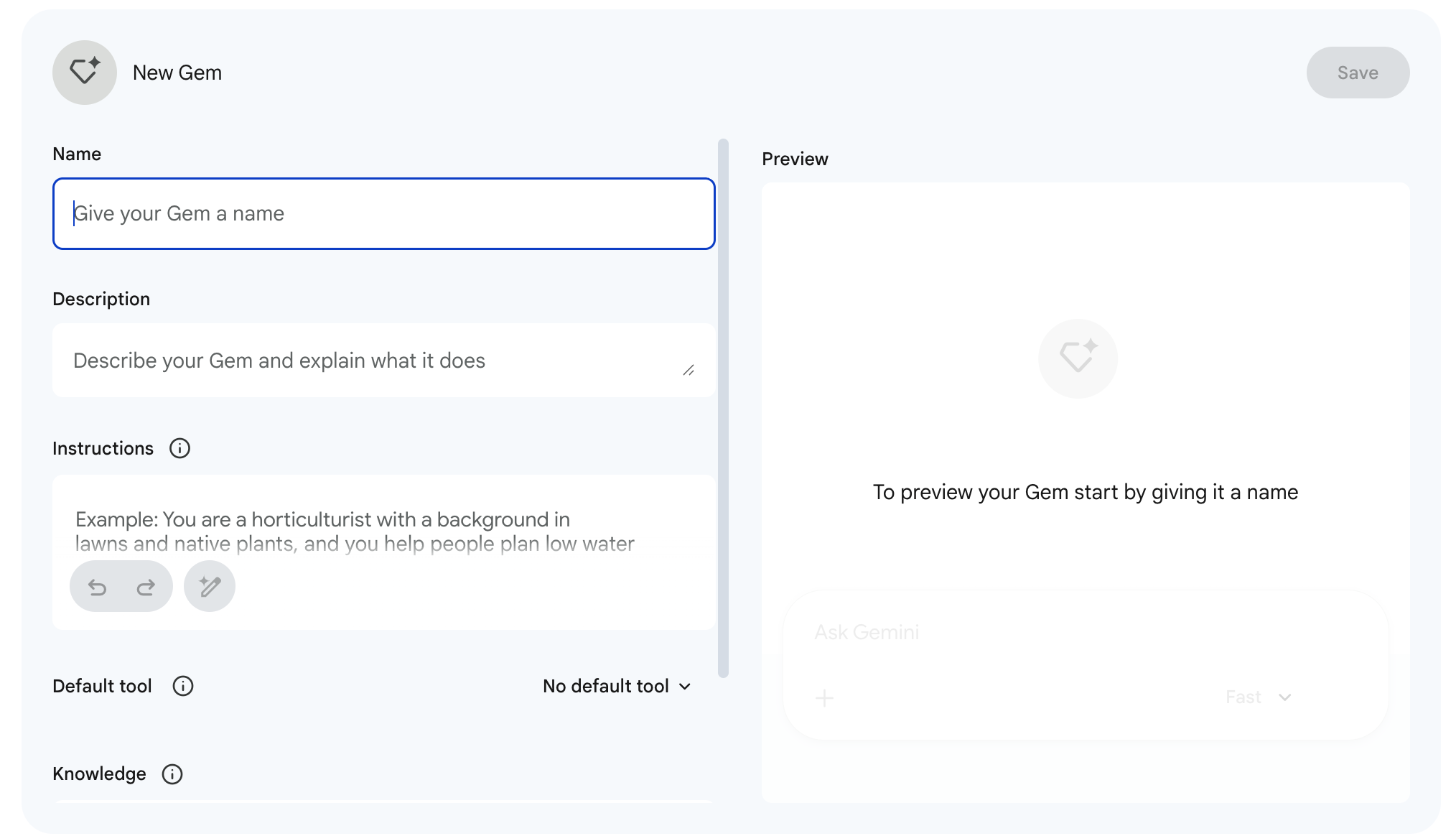
  1. Memory
  2. File access
  • Gems: Don't remember details across chats and are limited to 10 attached files.

  • Notebooks: Remember details across chats and you can sync 100+ sources.

Gemini Gems

When to reach for each:

  • Gems: For routine tasks or specific instructions with limited variation. Examples: having AI act as a specific role like a "presentation reviewer," or running a task that doesn't change like a "status update formatter."
  • Notebooks: When you have a more complex project that isn't one clear-cut task, or when you're trying to make sense of a large amount of information. Examples: an ongoing workspace like "spring campaign planning," or cross-document understanding like a "customer research assistant."

Now it's time to set one up. Follow the four steps below to create a Notebook anchored to your work.

Key takeaways
  • 01If you're repeating tasks or feeding Gemini the same details over and over, a Notebook is the better setup.
  • 02A Notebook holds three things: Instructions, source files, and chats that inherit both automatically. Each new chat inside it starts already having background.
  • 03Notebooks work for a specific initiative, a recurring task or workflow, or a perspective you want Gemini to play. The last two are where AI starts working strategically with you.
  • 04Notebooks vs NotebookLM: Use Gemini Notebooks to do everyday work, NotebookLM to study or generate Video/Audio Overviews, Visuals, and more from your sources.
  • 05Gems are similar, but best for routine tasks as they don't have cross-chat memory and can only access a limited volume of documents.
Step 01

Pick your Notebook

If you're unsure where to start or evaluating some options, this prompt will help.

Step 02

Create your Notebook and load sources

Now that you identified what to create, you're going to build your Notebook in Gemini and attach reference files.

Step 03

Draft your Notebook's instructions

Instructions tell Gemini how to respond inside every chat in this Notebook. Run this prompt to help your Notebook stay on task.

Step 04

Make Notebooks part of your work

You've built your first Notebook. From here, two things keep you leveling up: get comfortable using and refining this one, and learn to spot opportunities to create new ones.

Try this prompt

Pick the area of work for your Gemini Notebook

Use this prompt to find the right topic to build your Notebook around, one where persistent knowledge and reference material will pay off. Paste the prompt into a new Gemini chat window to get started.

Your AI platform may paste this prompt as an attachment instead of text. Once pasted, hit enter to get started.

Was this helpful?
Try this prompt

Draft your notebook's instructions

This prompt helps you write instructions grounded in the background of your Notebook, the sources you loaded, and the way you want Gemini to respond. Copy the prompt and paste it in a new chat window in your Notebook to get started. Paste the final version into your notebook by clicking the three dot menu in the upper right of your Notebook > Notebook Settings > Instructions.

Your AI platform may paste this prompt as an attachment instead of text. Once pasted, hit enter to get started.

Was this helpful?
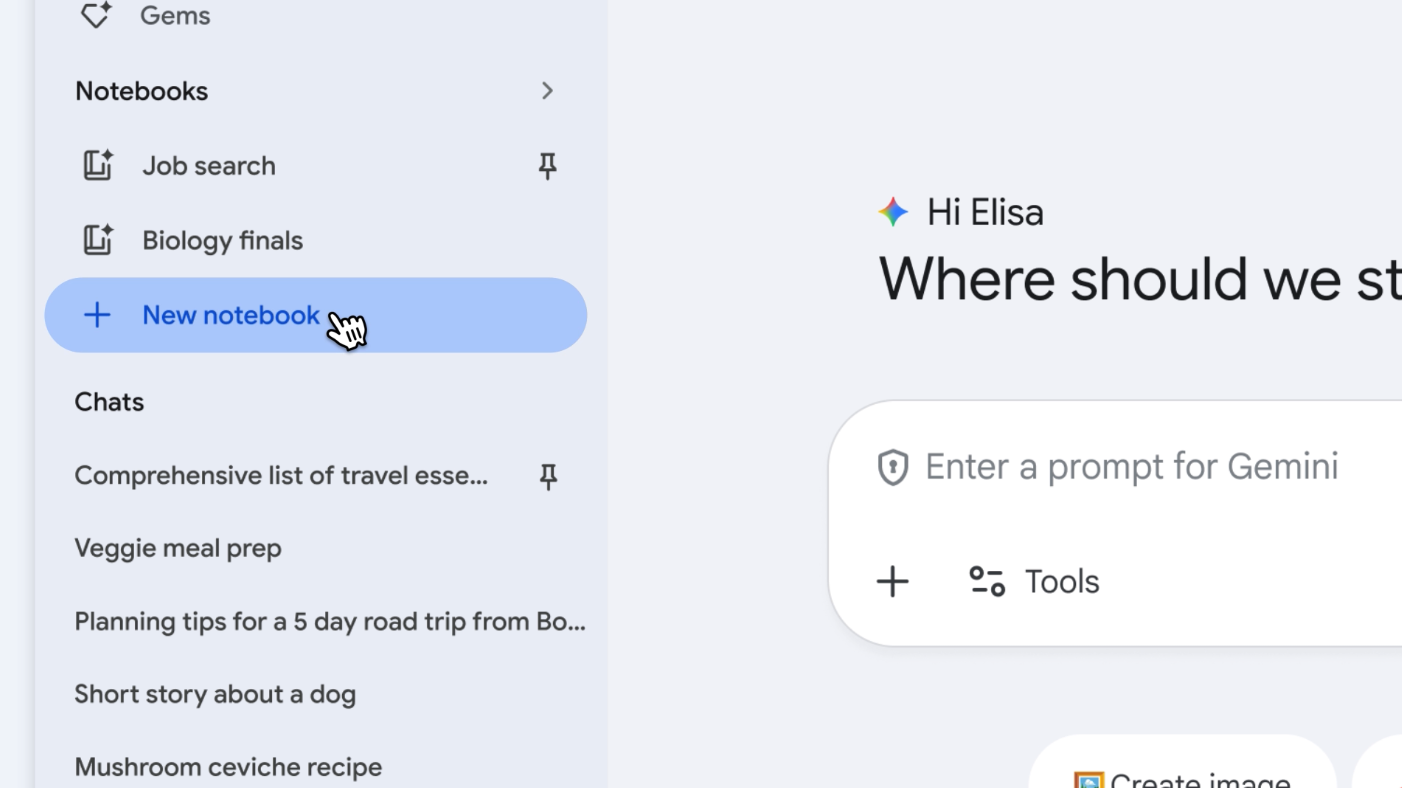
1Open Gemini. In the side panel, find the Notebooks section between "Gems" and "Chats." Click New notebook.

Gemini web side panel showing the Notebooks section and the New notebook button

2Name the Notebook after the project you locked in.
3Open the source panel inside your new Notebook, then add sources from Your Files, Drive, Websites, and/or Copied text.
4Confirm your sources are loaded by clicking "Sources" above the text box, then add new sources here as you continue to use the project.
5[OPTIONAL] If you've already been working on tasks related to this Notebook, you can pull them in for the Notebook to reference in fresh chats.
Was this helpful?
0 of 5 done
1Use and refine this Notebook
  • Open a new chat inside the Notebook whenever you work on this topic.
  • Edit the instructions or add and update files as the work evolves.
2Create new Notebooks
Was this helpful?
0 of 2 done
Submission

Heads up: the person who shared this link with you will be able to see what you submit.